UPRISEN ANTRAAJAAL CMS

Integrations

Your content already has a home. Bring it into one Media Library, then use it across playlists, zones and screens.

5 integrations
Cloud files

Google Drive

Bring selected files from your Drive into Media Library.

How importing works

Choose Google Drive, sign in to your Google account, select supported files and confirm the import. Importing copies selected media; editing the original does not automatically update your published content.

Cloud files

Dropbox

Choose the Dropbox files you want to use on your screens.

How importing works

Open Dropbox from Media Library, choose your files and return to the import queue. Your selection still needs to pass the supported-format and security checks.

Cloud files

OneDrive

Import selected content from your Microsoft account.

How importing works

Sign in when prompted, choose supported files and confirm the selection. Organization policies and file permissions can affect which files are available.

Designs

Canva

Export selected Canva designs into your media workflow.

How importing works

Connect your Canva account and choose a design to export. Imported exports are media files, not editable Canva source designs. Edit in Canva and import a new export when you need to update the content.

Photos & videos

Pexels

Find visual content for your next screen campaign.

How importing works

Search for a photo or video, choose an asset and import it into your library. Review the asset license and any restrictions for your intended use.

ONE IMPORT WORKFLOW

From your source to your screens.

01

Choose a source

Start in Media Library and select the service that holds your content.

02

Select your content

Authorize the connection where required and choose the files or designs you need.

03

Review the import

Wait for transfer, supported-file validation and security checks to complete.

04

Use it in a playlist

Organize your media, add it to a playlist and publish to your chosen screens.

GOOD TO KNOW

Choose exactly when
your content changes.

Imports create a copy in your media library, giving you control over what goes live. When your source content changes, import the updated version and publish it when you are ready.

Provider accounts, access permissions, export availability and content licenses apply. Supported file types and size limits are shown in the import workflow.

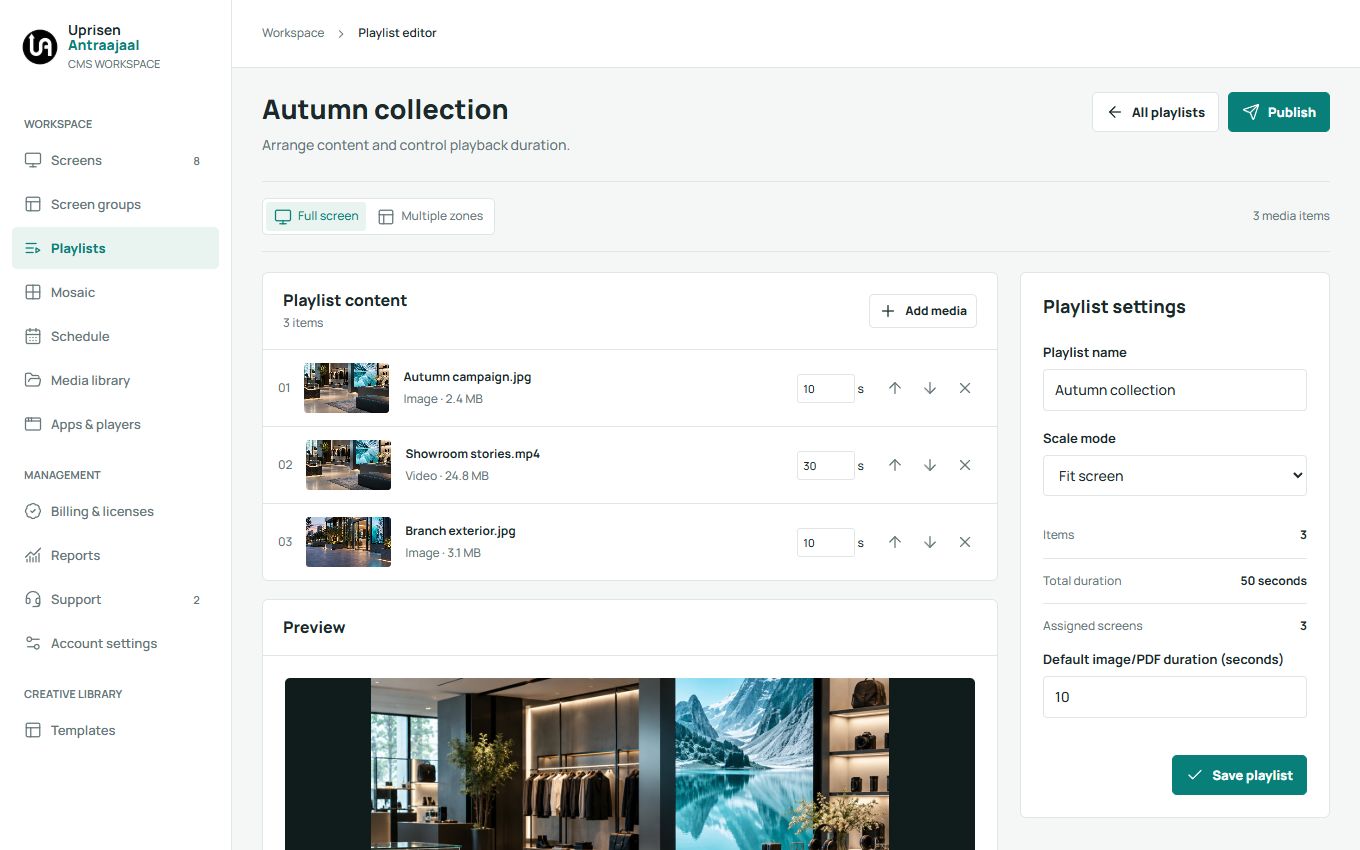
Playlist content and playback settings in the CMS
Imported media can be reused in playlists. Illustrative product view.

Before you connect.

Can I combine direct uploads and cloud imports?

Yes. Upload supported files from your device or import selected content from a connected service. Organize both in Media Library and reuse them in your playlists.

How do I choose which content to import?

Open your preferred service from Media Library, select the files or designs you want and confirm the import. You stay in control of the content you bring into your workspace.

How do I prepare imported content for offline playback?

Add supported imported media to your playlist, publish it and let the player complete its downloads. Downloaded supported media can continue offline; live websites and online widgets need connectivity.

LET'S TALK ABOUT YOUR SETUP

Bring your screens. Bring your questions.

See how the workflow fits your business.

Book a demo